Category Archives: SharePoint 2010

When Your OneNote Notebook Errors Due To Exceeding The Maximum System Download File Size

Last week I had a ticket from a customer who was getting the following error when trying to sync her OneNote notebook to a SharePoint 2010 library:

20130416Image01


“This section cannot be synced because it exceeds the maximum system download file size. Click here to see help online about the error.”

It sounded like she might have an attachment in one of the sections of her notebook that was over the 50MB upload file size limit for our SharePoint environment. After she searched for a bit, she found the 78MB file, removed it, and tried syncing again. Unfortunately, the same error kept appearing.

After a bit more research, I found the solution to her issue here:  http://answers.microsoft.com/en-us/office/forum/office_2010-onenote/this-section-cannot-be-synced-because-it-exceeds/339a7cd3-db2c-4505-b675-734d5459091d

To quote:

So this problem is probably being caused by a single large file that is over 100 MB. If you have any such files, that removing them might cause the issue. However, you may still need to take a couple more steps before the error will go away. 

NOTE: the following steps will effectively remove the earlier versions & backups, so make sure your don’t need to revert to an earlier version of the notebook before you proceed.

– When you delete a page or section, we move it to the Notebook Recycle Bin, which stores the data for a few more days. You may need to delete the offending file(s) by going to  (Share -> Notebook Recycle Bin -> Empty Recycle Bin). Alternatively , you can go into the recycle bin and delete specific pages or sections if you don’t want to empty everything. 

–  We also store versions of pages so that you can go back to an earlier version. However, this can take up extra space which might be the source of the problem. You can select Share -> Page Versions -> Delete All Versions in this Notebook or Section  to clear out old versions. 

Once I had her follow those instructions for removing the file/sections from the Notebook Recycle Bin, everything was back to normal.

While I like OneNote, it certainly plays by its own rules when it comes to syncing, recycling, and security…

Sometimes, It’s Easier To Recreate The Document Than To Fix The Problem…

So today I get a ticket about a user being unable to open a Word document in a SharePoint library. When I go to investigate, I see there are around ten documents in there, and all but two of them open just fine in Word Web Apps for viewing. The other two documents return the following:

20130226Image01

“Word Web App cannot open this document for viewing because of an unexpected error. To view this document, open it in Microsoft Word.”

I could edit both documents in the browser, and I could definitely open both in Word. But for some reason, viewing in the browser was a no-go.

I did some searching, and it seems like all the questions/answers around this problem focused on solutions that assumed that *all* Word documents in the SharePoint environment were behaving in this fashion. But in my case, it’s only a small number in a particular library and site.

I downloaded copies of the documents, and I was able to “fix” one by saving it as Word 97/2003 format, saving it again in Word 2010, and then uploading it. But the other was resisting all attempts to “fix” it. I say “fix” as I really don’t know what made those two documents any different than the others that worked fine. Nothing stood out, and my searching wasn’t turning up any answers.

I finally figured it was OK just to cheat for a solution… I created a blank Word document on my computer, gave it a slightly different name, copied the content from the “broken” document, and then saved/uploaded the new version to the library. Voilà… everything works, and the problem is “solved”.

Part of me feels bad for not finding an actual answer. But when you’re facing a continual flow of projects and questions, sometimes it’s easier (and more efficient) to just take the cheater’s way out.

Oh, but I still need to post it here, as I know by this time next month, I’ll be thinking “I remember seeing that error before, but what did I do to fix it…”

A Fix For When InfoPath Forms Error Out When Launching From A URL…

We recently started running into a problem when some individuals would try to launch an InfoPath form (running in the InfoPath client) from a URL. It would work for most other people, but not for them. The error started with “The form template is not currently browser-enabled”…

Uh, yeah… I know that!

We finally found that the problem was with Internet Explorer version 9 (IE9) and the Compatibility View setting. Unless your particular site where the InfoPath form resides is set to use Compatibility View in IE9, IE will attempt to launch the InfoPath form in the browser no matter what you do.

Here’s the fix to correct that problem:

http://social.technet.microsoft.com/Forums/en-US/ieitprocurrentver/thread/30506a8a-b368-4873-ad32-e931341e6e0e

It’s a quick fix, but not an intuitive one based on the error message. Make sure to put this at the top of your “check first” list if your InfoPath forms suddenly think they’re browser-enabled for random people…

When Does A Default Access Of Reader Really Mean No Access?

When the page being requested has never been published…

I’ve run into this twice in the last two weeks. Someone has a site page, and they’re trying to get it all pretty-fied for some go-live event. They set the default access to reader, and a smaller number of people to contribute. The contributors can see the person’s online work just fine. Yet, all the people who come in as readers get access denied.

In both of my cases, it was because the page destination in question had never been published to the site as a major version. Looking at the page history, it started as .1, and was up as high as .15, but never was there a 1.0 of the page. As such, people with read access were meant to revert back to viewing the last major published version. Except here… where there *was* no major version to revert to.

The answer was to have the page editor go ahead and publish something out there so that everyone would get the default level of access they should have. Then once they get the page finally cleaned up, they could then publish a major version (version 2.0) that everyone would start seeing.

The whole situation makes sense, once you figure it out. But if you’re simply looking at permissions (and even more so if you’re an admin and can see the draft pages with no issues), it take take a short while to finally figure out why the behavior of the page access seems a bit off.

Moving A Wiki From One Site Collection To Another…

I got a request today from a customer asking if I could move a wiki library from one site collection to another.  I went to the library properties, thinking I could copy the library as a template with content.  Nope… no such option there.

I then created a new wiki library in the target site and copied over the .aspx files from the source to the destination library using SharePoint Designer.  That put all the .aspx files out there, but none of the content showed up on the pages.  Bummer…

Finally, I stumbled onto using SharePoint Designer to copy the wiki library as a template.  I selected the wiki library from the left side navigator, clicked on Library Settings on the Page tab, and then clicked on Save As Template on the List Settings tab.  I created the template with content, copied the template to the new site, and then created a new wiki library using the template.  Success (mostly)!

The “mostly” is because the links on the pages still point to the old site until you edit and save the page.  All the wiki links that use the [[ ]] convention will update to their new location, and all is good (so far as I can tell).

I’m sure if something’s off, they’ll tell me…

When A OneNote Notebook Won’t Sync In A SharePoint Site…

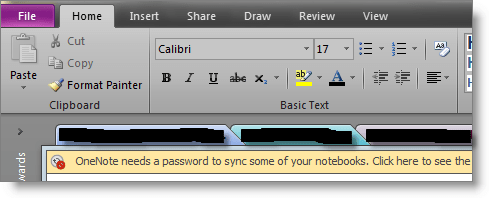
First off… I really don’t like OneNote/SharePoint sync issues.  OneNote has its own funky caching of credentials so that it can keep things sync’d in near-real time.  The problem is that you sometimes end up with one or more notebooks that won’t sync with their SharePoint versions regardless of the SharePoint permissions.  Those errors are nasty…

My SharePoint Buddy did find a way to fix some of the errors, however.  It made sense once she pointed it out, and it fixed two pending issues I had with various users.  So in order to remember it myself and share it with others, here it is.

In OneNote, you have this particular view.  Click on the File tab:

20121231Image01

Click on View Sync Status:

20121231Image02

Click Sync Now on the notebook that’s having issues:

20121231Image03

That should prompt for your Windows user name and password:

20121231Image04


OneNote will cache those credentials, and  your synching should now work properly.

Creating a Send Email workflow for a list item

In one of my projects, the customer had requested a feature that would allow them to send an email notification about a list item to someone.  In my former life as a Notes developer, this was a no-brainer given the fact that the Notes client was both the application and email client.  But in SharePoint (at least at my level of knowledge so far), it wasn’t quite as easy.

I was working from a list (not a document library), and I used InfoPath to customize the list form.  I didn’t want to add columns onto the list to manage send to, copy to, subject, and email body fields.  I wanted them to be able to “click a button”, get a form they could fill in to add addresses and an email body (all under their control at the point they go to send it), and then send it from there.

I ended up with a workflow built in SharePoint Designer 2010 that works pretty well for what they wanted.  To try and save you a few minutes (or hours) of time, here’s what I did…

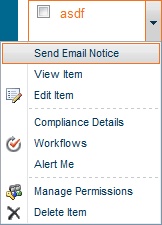
Create a new workflow in SPD and set it to run manually.  I also added the workflow to the dropdown list item menu for the targeted list.  That way they don’t have to click on the Workflows option to get to the screen that lists the available workflows first.

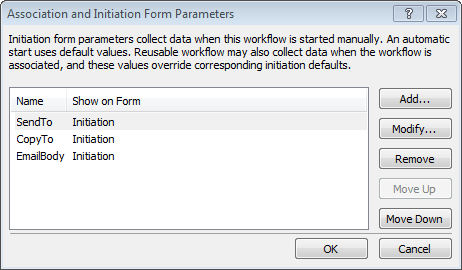
Add three workflow initiation variables that will prompt the user for values when the workflow is triggered.

20121207Image01

Set up a workflow with the following actions:

20121207Image02

The first Set Variable: ItemLink just builds the URL for the site, and ends with “ID=” and the current value of the ID field for the item.  The EmailSentBy variable is the person who is sending the email, and the DoNotReplyStatement variable is some boilerplate text to let people know that the Reply To address is not the person who sent the email, but is the system email address for the SharePoint environment.  That variable looks like this in the String Builder window:

20121207Image03

Our Email action just puts together all the variables we created and defined:

20121207Image05

With all that in place and published (and the workflow added to the dropdown list item menu), I can launch the workflow like so:

20121207Image04

When the workflow starts, I get prompted for the initiation variables, which gives me a nice looking dialog box for the user to fill in:20121207Image06

When I fill out the form and click Start, here’s the email I end up with:

20121207Image07

The person sending it was able to add any explanation they wanted, the recipient has a link to the list item, and we have the explanation telling them not to do a reply to this email, as it won’t go back automatically to the sender.  Of course, I know they’ll ignore that and click Reply anyway, but at least we tried.

Hopefully this will make it a little easier for you to add the same functionality to your list if and when a customer asks for a similar feature.

Changing the number of items in the Announcement List web part…

This is more of a reminder to myself…

A user wanted to change the number of items showing up in the Announcement List web part on their home page.  They’re using the built-in Summary View, which doesn’t show up in the list of views for the Announcement List.  So here’s how you do it…

  • Site Actions > Edit Page
  • Announcement Web Part – Edit Web Part
  • In the Announcement List View properties, click the Edit The Current View link under the <Current View> selection.
  • Scroll down to the Item Limit section, expand it, and enter the number of items to display.
  • Click OK.
  • Save/Check-in the page, and publish it if that’s necessary.

You now have more or less items showing than you did before.

When a user can’t open a Word document stored in an Agenda meeting workspace area…

I had a report today of someone who couldn’t open a Word document that was part of their Agenda list in a Meeting Workspace area.  They would click the clink and the document would open in the browser with Office Web Apps, but then it would fail when trying to open in Word.  The error message was as follows:

Microsoft Word Web App
To open this document, your computer must be running a version of Microsoft Word and a browser that supports opening files directly from the Office Web Apps.

Some research turned up this KB entry from Microsoft:

The Office Web App cannot open an Office document in Office 2010 if multiple versions of Office are installed.

In this case, Office 2007 had been uninstalled, but Visio 2007 was still floating around.  They uninstalled Visio 2007 and Office 2010 to make sure everything was cleaned out, and then reinstalled Office 2010.  Once that was done, everything opened perfectly.

The dreaded “‘Filename’ is locked for editing by ‘username'” error…

Hopefully this will help someone else…

I’ve run into issues where I get help desk cases saying that a document is locked in SharePoint and the user can’t get into it.  Of course, my first thought is that someone has it checked out.  But when I go out to see who has it, the answer is… no one.

The real issue ends up being an internal document lock in the file itself.  Microsoft covers that in this KB:

You receive a “<FileName> is locked for editing by ‘another user'” message when you try to modify a document in Windows SharePoint Services even though you are the user who previously opened the document

This normally happens when the person’s computer crashed or locked up during a previous edit session with the document, and the file wasn’t closed properly.

When a document is opened by a client program, Windows SharePoint Services puts a write lock on the document on the server. The write lock times out after 10 minutes. Users cannot modify the document during the time when the document is locked.

In a scenario where the program that opens the document unexpectedly quits or crashes and you try to open the document again before the write lock times out, the message that you receive says that the document is locked by another user. This behavior occurs even though you are user who previously opened the document.

The solution is to wait 10 minutes and try it again. 🙂

Sometimes ignoring problems *do* make them go away…