Category Archives: SharePoint 2010

There *is* a difference between “Read” and “View Only” permissions…

This situation bit me the other day when I was trying to figure out why someone couldn’t open a document in a library that they apparently had permissions to view.  I did some research and found that there was a slight (but significant) difference between Read permissions and “View Only” permissions.

Reza Alirezaei summarized it well in his blog post titled Interesting Difference Between “View Only” and “Read” Permissions Levels:

  • If a user has “Read” permission level to a document, they can always find the document using search or browser and open it in the browser or their Office client app.
  • If a user has “View”Only” permission level to a document, they can only find and open the document in the browser. In that case, Search doesn’t show the document!

Check out his entry for further details.  Thanks for sharing that, Reza… maybe I’ll remember I jotted this down next time I run into the problem. 🙂

Checking out the web parts on a page using ?contents=1

In our environment, we have a small number of custom web parts that work with our company intranet.  Let’s call them “Current News – Left” and “Current News – Right”.  They take information from the “Current News” list and show them in two different columns on the page.  All in all, it works.

The problem is that some people see the Left and Right web parts and think they want to have the same layout on their page.  They put the page into Edit mode, add the web part, and BOOM!  Their page now throws a generic error and they have no idea how to get back into the page, much less what to do to fix it.

The problem is that the way these two web parts were coded, they require that the “Current News” list already exist.  If the list exists but has no items, that’s fine.  The Left and Right web parts are empty.  But if the list doesn’t exist at all, the page blows up.

In order to get the page into a mode where I can delete the web part(s), I go to the URL of their page and add “?contents=1” at the end.  That gives me the Web Part Page Maintenance screen for that page, and I can close, reset, or delete the web parts from that interface.

Once I remove the “Current News” web part(s), the page works again.  The other way I could fix it is to add the “Current News” list, but knowing about the “?contents=1” trick gives me a lot more control, and can be used in various situations.

Be careful when changing a list while using InfoPath to customize the form…

So, yesterday I’m working away on migrating a form we have into a SharePoint list.  I build all the columns, and then start customizing the form with InfoPath.  All is going well.  That is, until I made changes to the list columns.  I found out very quickly that you need to pay attention to when you do this in relation to the InfoPath form editing.

If I make the column changes in the list and then open the form up for editing in InfoPath, I get the following message:

Basically, the list has changed, and would you like to have your InfoPath form updated with the new list of fields?  For me, the answer is yes.

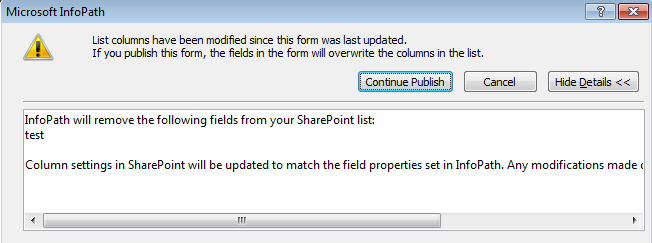
The mistake I made was once again updating columns in the list, but neglecting to close the InfoPath editing session first.  That gives you *this* message when you save the InfoPath form:

Basically, you changed the list columns, but the InfoPath form doesn’t know about those changes.  So I’ll just overwrite the column changes and make the list match this InfoPath form, OK?

No, not really!

The two different situations make sense when I think about it, so that’s not really an issue.  The problem is that it’s easy to think you’re answering the wrong question if you don’t pay close attention and just quickly choose the option to continue.  Fortunately in my case, the changes I lost were to two new fields that I could quickly recreate.  It could have been much worse.

Recommendation… Make sure your InfoPath editing session for the list is closed before making column changes.  THEN you can open up your form and continue…

What do you mean I can’t customize my list with InfoPath?

This’ll teach me to not try new things on the spur of the moment… 🙂

I was setting up a new site collection, nothing fancy.  Normally when I do that, I base it off the Team Site template, just because it gives me a few of the lists that users might want.  This time, I decided to go with a Blank template.

I’ll just keep it basic, I thought…

All was fine, custom list created, columns added.  Now time to customize the list forms in InfoPath, and… Where’s my Customize Form ribbon bar button for the list?

I hate things that should be so simple to “fix”, but still take me a long time to figure out.  Turns out that many of the Site Collection Features I take for granted by basing a site off of the Team Site template aren’t there for a Blank template.  After some back-and-forth comparison, I found that I needed to activate the SharePoint Server Enterprise Site Collection features option.  Once I did that, I got my Customize Form icon back, and I can carry on.

I’ll note that here so when I forget about it in three months and hit it again (because I don’t learn), I’ll vaguely remember… “Hey, didn’t I solve this once a while back?”

🙂

Book Review – Microsoft SharePoint 2010: Creating and Implementing Real-World Projects

It’s one thing to be able to build a Hello World application using a new technology. It’s another thing entirely to take the next step and build something that is actually useful. That’s the jump that Microsoft SharePoint 2010: Creating and Implementing Real-World Projects makes. The authors, Jennifer Mason, Christian Buckley, Brian T. Jackett, and Wes Preston take ten different business scenarios, explain the business requirements, discuss the different architectural options (along with why they chose a particular path), and then proceed to build the solution in a step-by-step fashion. The book isn’t perfect, but I think it has some significant value for SharePoint developers.

Contents:
Introduction; Building a Project Management Solution; Building a Training Registration Management System; Building a Basic FAQ Solution; Building a Learning Center; Building a Help Desk Solution; Building a Remote Teams Activity Site; Building a Team Blog Platform; Building an RFP Response Solution; Building a Contact Management Solution; Building a Resource Scheduling Solution; Resources; About the Authors; Index

SharePoint is flexible in that you can accomplish a task or build a solution in multiple ways. That’s also a problem because you could easily build yourself into a corner without understanding how you got there. Having a real-world solution architecture analyzed by experts is extremely valuable, and you can apply those concepts in many other areas. I also appreciate how the analysis of the business requirements takes place, as it gives you a feel for how SharePoint can be applied to your own organizational needs. The actual solution they build is almost secondary to the value I get from those first two points.

A number of the reviews have mentioned that there are errors when trying to follow the step-by-step instructions on building the solution. That’s unfortunate,as people new to SharePoint will end up getting confused more than they already are. This is a case where I’d recommend getting the e-book version and then bookmarking the errata site. If this was one of many tech books covering the same topic in the same fashion, I would probably recommend bypassing it. But there’s too much value in the overall content here to go that route. I’ll take the value of the analysis and real-world scenarios, and figure that the troubleshooting is just a bonus. 🙂

I’m looking forward to working through all these sites and making them available as demos for my customers. Microsoft SharePoint 2010: Creating and Implementing Real-World Projects will definitely improve my overall SharePoint skills.

Disclosure:
Obtained From: Publisher
Payment: Free

A user’s display name (and permission) is incorrect on a specific SharePoint Site Collection

This was a strange issue that fortunately has a technote for it…

We had a person who used to be a contractor and then subsequently became an employee in a different area.  They were added to a particular site with Contribute level access, but whenever they tried to get to the site, they’d get an access denied message.  In Active Directory, they had the correct information for their new position.  Their My Site had all the right profile information.  But when I’d use the People and Groups dialog box to add them to the site, they’d show up with the contractor information.  It was as if the person in that site was different than the person we were trying to add.

After some searching (and flailing for the right combination of keywords), I found a technote from Microsoft that explained the issue:

A user’s display name is incorrect on a specific SharePoint Site Collection

A user in your organization has recently updated some of his or her information (such as the user’s display name) in Active Directory Domain Services. The information was updated correctly in the user Profile Service Application. However, on a specific Microsoft SharePoint 2010 Site Collection, that information was not updated.

The key is to remove them from the All People group in the Site Collection, which can be found in SharePoint 2010 at <Site URL>/_layouts/people.aspx?MembershipGroupId=0.

Once I did that and then re-added them, their information was correct, and they could access the site with no issues.  Whew!

Getting an audit of who has been updating permissions in a site…

I got a help desk case today asking if I could tell who had updated permissions on a particular site.  After a little bit of Googling, I was able to get the basic information for them.  Go to the site in question and do the following:

  • Go to Site Actions > Site Settings > Site Collection Administration > Site Collection Audit Settings
  • Check to see what’s being audited.  In my case, I was fortunate in that the List, Libraries, and Sites > Editing Users and Permissions was selected (which is what I want).  If that hadn’t been selected, I could have only set it and audited items going forward from this point in time.
  • Click OK

Now to run the audit report:

  • Go to Site Actions > Site Settings > Site Collection Administration > Audit Log Reports
  • Click the link for Security Settings under Security And Site Settings Reports
  • Select a location where the spreadsheet report will be stored.  In my case, I just used the Shared Document library.
  • Click OK.

The report will churn away for a short bit and save the spreadsheet when its done.  When you go into the location where it’s saved, just click on the file and Excel will launch.

There are two sheets in the report.  The first is summary information (which wasn’t of much use to me), and the second sheet is the detail.  You’ll quickly see that the information will never be mistaken for “user-friendly”, but you can dig through and find who added, deleted, or updated permissions to the site.  It doesn’t tell you what was added or changed, but at least it gives you a general guide to who has been making updates and when they occurred.

Once I learn more about SharePoint, perhaps the other columns will be of more use to me.  But for right now, this worked for what I needed.

Adding a workflow to a list item menu

This is one of those tips that was shown to me by Sandra (who will be known and referenced in all subsequent blog entries as SPB – SharePoint Buddy), but I kept forgetting how to do it every time I needed to remember it.  Let’s fix that right now…

When you create a workflow for a list and set the trigger to run it manually, you normally have to click the dropdown next to the list item, then select Workflows, then find the right workflow, then…  you get the idea.

You can take a few steps out of that process by putting the workflow directly on the list item menu… Go into SharePoint Designer (I’m using SPD 2010) and navigate to the list that contains the workflow:

The resulting dialog box will give you the options for what to name the list item menu entry, and what it should bind to:

I go back to the site and try the list item menu again, and voila!

Thank you, SPB…

All journeys start somewhere… this one starts here.

Welcome… I’m Thomas Duff, aka “Duffbert”.  I’ve been writing as part of my technical career for years, with the hub of much of what I do over on my original blog at Duffbert’s Random Musings.  Little did I know when I started blogging nearly 10 years ago, it would take me places I never imagined.

SharePoint Duffbert is a new blog effort I’m starting as I get more focused on the next phase of my technical career.  For the last 15 or so years, I’ve been working with collaborative software as a developer using IBM Lotus Notes and Domino.  Contrary to what many others may think, Notes (as I’ll refer to it for brevity’s sake), is an extremely powerful application development platform.  I started Duffbert’s Random Musings as a way to share Notes knowledge in that community.  I also inserted a lot who I am, my struggles, my opinions, and as time went on, more book reviews than you would probably believe.  But basically, that blog is more personal and more Notes-related, and that’s not really where I’m at right now.

SharePoint Duffbert will be my platform to share tips and tricks as I stumble along the SharePoint path with many others on the same journey.  I’m sure there will be editorial pieces, perhaps even some videos… And if things go the way I expect them to, there will be presentations made at SharePoint gatherings such as SharePoint Saturdays, User Group Meetings, and… ?  I’ve co-authored two books in the IBM world on Sametime, so it’s not like I would rule that out completely either.

Anyway, I want SharePoint Duffbert to retain who I am as a person in the tech industry, while also focusing the topics at hand to be SharePoint-related.  There will be far more development information than administration material.  In the Lotus/Domino world, I was a developer who had just enough admin skills to be dangerous to myself and others.  For SharePoint, my learning curve for just development will be so steep that I don’t even want to pretend that I know what will happen when I click something in Central Admin.  That’s what I have coworkers for at this point in my career… 🙂

So again, I welcome you here.  While I’m documenting things I’ve learned on a daily basis, I hope that you’ll come along and pick up a thing or two.  We’ll work out the details as we go, and hopefully have some laughs and a beer or two along the way… or a Midori Sour… those are *really* good…