How to delete Document Library folders that are “locked” or “checked out”…

I got a help desk case where the customer was trying to delete a folder from a document library. But every time she tried it, she got the error message below. I tried to delete it and got the same result. It didn’t matter if it was through the browser interface, the Explorer interface, or SharePoint Designer. No go…

20130827Image01

I found the answer in the blog entry below:

http://moss-arvit.blogspot.co.uk/2011/09/sharepoint-2010-file-is-currently.html

Apparently it’s an issue of there still being documents in the library that have not yet had a major version published. To the person trying to delete the folder, it looks empty.  What you need to do is go into the Library Settings and take ownership of the files. You can then delete the entries, and after that the folder can be deleted.

Library Tools > Library > Library Settings > Permissions and Management > Manage files which have no checked in version:

20130827Image02

20130827Image03

20130827Image04

20130827Image05

Hopefully that will save you a bit of time if you run into the same situation…

Getting line breaks in a multi-line field customized by InfoPath…

I’ve been working on a site, and one of the fields in the list is a multi-line text box that collects concatenated values from entries on other fields. The underlying core of the site is that this is a custom list that I’m customizing with InfoPath.

I had been putting the different field concatenations one after the other, separated by semicolons. But ideally, it would be nice to have each set on a separate line.

My SharePointBuddy pointed me in the direction of this post: http://blogs.msdn.com/b/infopath/archive/2005/03/04/385577.aspx

It didn’t seem to work for me, but there was a comment in there that talked about actually copying and pasting a line break character in the concat statement in the rule. By creating a WordPad document that has two lines of content, you can copy the end of the first line and get the invisible line break character. Then when you paste it into the concat statement, you get your line breaks in the field!

Here’s how it looks in the rule:

20130826Image003

The line break in the concat statement isn’t a manual line break I put in there. It’s the effect of pasting in the line break character from the WordPad document. I also put some notes to that effect in a hidden section above the field so that future programmers wouldn’t “fix” the layout of that statement.

Before, here’s what my field looked like:

20130825Image001

With the linebreak copied in there, we now have this:

20130825Image002

MUCH better!

Need to modify the width of a SharePoint column in a view? jQuery!

I recently had a request on one of my sites to increase the size of the Description column in the SharePoint views. Out of the box, there’s no easy way to do that. But, with a little snippet of jQuery placed in a Content Editor Web Part on the page with the view, you can easily change any of the column widths…

Here’s the code I used:

<!--ADJUST TABLE COLUMN WIDTH-->
<script src="http://ajax.googleapis.com/ajax/libs/jquery/1.2.6/jquery.min.js" type="text/javascript">
</script>
<script type="text/javascript">
$(function(){
$("div.ms-vh-div:contains('Description')").css("width", "350px");});</script>

If you have multiple columns to modify, just repeat the line with the “div.” string. This is so simple, my customer went in and made her own changes to the code.

Many thanks to Mark Miller, who provided the solution in the post SharePoint jQuery: Setting View Column Width.


How do sites in the My Sites Memberships list get there? And what if one is missing?

This was an interesting puzzle yesterday…

I get a customer help desk case about the Memberships list in her My Site page. She is the owner of a site that I set up for her, but it doesn’t show up on her My Site page. I really don’t use that feature, so I started digging around.

My thought was that I could just tell her how to add it manually. Um, no… Seems to be no way to do that through the UI. So if they get out there automatically, how does that work and why is her site not on there if she’s the owner.

I found my answer here: http://www.uccorner.com/183/sharepoint/memberships-in-sharepoint-2010-user-profile/

The Memberships list is driven by being listed in the *Members* group of the site in question. It doesn’t matter if you’re in the Owners group, the Visitors group, or listed individually. If you’re in the Members group for a site, that site will show up in your My Sites list. If not, it won’t.

To fix this, I added her to the Members group (she was already in the Owners group) and waited for the timer job to run. Once it did, her site was out there.

This is now recorded here for my “external brain usage” (and hopefully for anyone else confused like I was).

The workbook cannot be opened as it does not contain any visible named items

I got a report from a customer who was having problems opening an Excel spreadsheet in Office Web Apps. They were getting the following error:

20130620Image01

When I tried to download it and open it on my desktop in Excel, I got this error:

20130620Image02

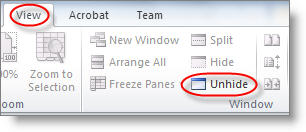
After that, I’d just sit there with the Excel client open but everything was greyed out. I was thinking that there might not be any way to recover the file, as it was last updated too far back. But fortunately, I poked around the Ribbon bar and found the following option:

20130620Image03

When I clicked that, everything showed up!  Whoo-hoo!

This link actually talks about the underlying reason as to why it happened, but I was more interested in mitigating the damage (which Unhide did just fine).

http://fendy-huang.blogspot.com/2011/02/unable-to-open-excel-workbook-as-it.html

When the Content Query Web Part doesn’t show up…

I ran into an issue where a customer reported that she couldn’t find the Content Query web part (CQWP) in her list of Content Rollup web parts. After a bit of research, I found that the CQWP only appears if you have the SharePoint Server Publishing Infrastructure site collection feature activated.

Once I activated that, the web part appeared as it should. Noted here as I’m sure I’ll forget the next time this happens a year down the road…

So you *can* add an icon to a list item drop-down menu entry…

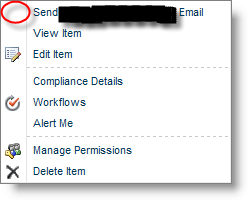
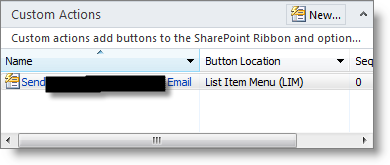
Back on September 1st of 2012, I blogged an entry about adding a custom entry to a list item drop-down menu (so I’d remember it next time I wanted to use it). It came out looking something like this:

20130519Image01

Just a couple weeks or so ago, someone commented and asked if you could add an icon to that entry. Now, looking at the default entries that SharePoint adds, the answer should be “yes”, but I didn’t know how to do it. But just this last week, my SharePoint Buddy showed me something she had discovered… how to add an icon! It was a case of both of us not scrolling down further on the screen to see the option for adding it.

To add the icon, you need to have a 16×16 pixel image for the menu. If you want to add a graphic to the Ribbon bar, it needs to be 32×32.

20130519Image02

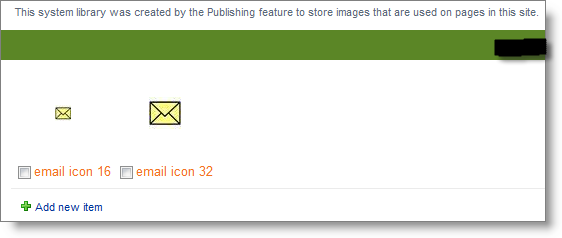
Add the graphics to a library in your site, such as an Image or an Asset library:

20130519Image03

In SharePoint Designer, go into the Custom Actions area of the list where the custom action is added:

20130519Image04

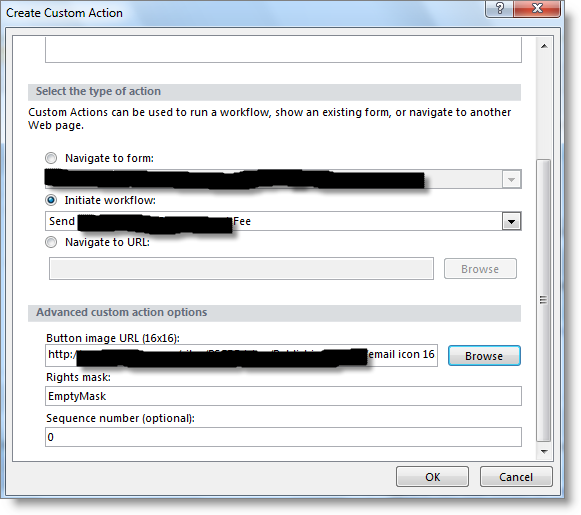
Here’s where I originally failed to see how to add the graphic. When you look at the Create Custom Action dialog box, the screen only scrolled down as far as the Navigate To URL entry.  If I would have scrolled down further (I honestly didn’t even notice the scroll bar… D’oh!), I would have seen where the icon could be added:

20130519Image05

I browsed to the library where the image was stored, and voilà… I have an icon!

If you want to borrow the email icons for your own use, here they are:

20130519Image06


20130519Image07


A Way To Have Surveys Launch Directly To The Questions…

I recently had a customer ask me if there was some way to set up SharePoint surveys to go directly to the questions instead of going to the “home page” of the particular survey. While researching a different question, I happened to run into this link that gave me the solution to that question:

http://techtrainingnotes.blogspot.com/2010/12/sharepoint-modifying-respond-to-this.html

Here’s the summary of the article…

If you want to launch the survey directly, have the URL go to the NewForm.aspx page. To have it go to a different page when finished, use the ?Source= parameter to put the URL of the page it should go to when done.

Here’s an example of how I could launch the customer’s survey directly into the question, and then send it back to the news page:

http://domain.com/news/Lists/HealthChallenge/NewForm.aspx?Source=http://domain.com/news/Pages/default.aspx

http://domain.com/news/Lists/HealthChallenge/NewForm.aspx is the part of the URL that goes to the survey and launches a new survey response.

 ?Source=http://domain.com/news/Pages/default.aspx is the part of the URL that sends the browser to a different page once the survey response is submitted.

I figured I needed to put this out here so I’d remember the format the next time I have to tell a customer about this. 🙂


When Your OneNote Notebook Errors Due To Exceeding The Maximum System Download File Size

Last week I had a ticket from a customer who was getting the following error when trying to sync her OneNote notebook to a SharePoint 2010 library:

20130416Image01


“This section cannot be synced because it exceeds the maximum system download file size. Click here to see help online about the error.”

It sounded like she might have an attachment in one of the sections of her notebook that was over the 50MB upload file size limit for our SharePoint environment. After she searched for a bit, she found the 78MB file, removed it, and tried syncing again. Unfortunately, the same error kept appearing.

After a bit more research, I found the solution to her issue here:  http://answers.microsoft.com/en-us/office/forum/office_2010-onenote/this-section-cannot-be-synced-because-it-exceeds/339a7cd3-db2c-4505-b675-734d5459091d

To quote:

So this problem is probably being caused by a single large file that is over 100 MB. If you have any such files, that removing them might cause the issue. However, you may still need to take a couple more steps before the error will go away. 

NOTE: the following steps will effectively remove the earlier versions & backups, so make sure your don’t need to revert to an earlier version of the notebook before you proceed.

– When you delete a page or section, we move it to the Notebook Recycle Bin, which stores the data for a few more days. You may need to delete the offending file(s) by going to  (Share -> Notebook Recycle Bin -> Empty Recycle Bin). Alternatively , you can go into the recycle bin and delete specific pages or sections if you don’t want to empty everything. 

–  We also store versions of pages so that you can go back to an earlier version. However, this can take up extra space which might be the source of the problem. You can select Share -> Page Versions -> Delete All Versions in this Notebook or Section  to clear out old versions. 

Once I had her follow those instructions for removing the file/sections from the Notebook Recycle Bin, everything was back to normal.

While I like OneNote, it certainly plays by its own rules when it comes to syncing, recycling, and security…

I’m starting to hang out at sharepoint-community.net

A new collaborative SharePoint site and space recently started up called SharePoint Community. For a new effort, I must stay I’m surprised with the number of features and ways to interact with other SharePoint Community members. It’s a great initial start, and I’m interested to see how it evolves over time.

Having been a long-time member of the IBM Notes/Domino community, I’ve seen these types of efforts many times in the past. Some have grandiose plans but never get off the ground. Others have a good initial start, but the initial momentum isn’t sustained and it withers away. A very few start up well, evolve based on feedback, and sustain their momentum over time. Those are the ones that become a great contribution to the overall community and make a difference.

It’s hard (actually, pretty much impossible) to tell with any certainty which path a new site like SharePoint Community will take. Especially being “new” to the larger SharePoint community, I don’t know what type of dynamics are at play, if there are back stories that give a new site more context, and so forth. Those things make a big difference, and I was much more in tune with those in my past life. 🙂

For me, SharePoint Community is a way I’ve chosen to jumpstart my involvement in my interactions with others. I’ve already seen value over the first week of being there, and I hope that continues to grow over time.

If you haven’t heard of SharePoint Community or you haven’t yet signed up, now’s a good time to head over there and take a couple minutes to get going.

And if you happen to see my name, say hi! I don’t bite… much.